How Color Pickers Work: From Screen Pixels to Usable Code
A color picker lets you select any color visually — click a gradient, slide a hue bar — and immediately get the hex, RGB, HSL, or CMYK code you need for CSS, Figma, or Photoshop. Sounds simple, but the math connecting that single click to four different output formats involves coordinate transforms between color models most developers never think about. If you've ever wondered why moving a slider 10% in one tool looks nothing like 10% in another, you're about to find out.
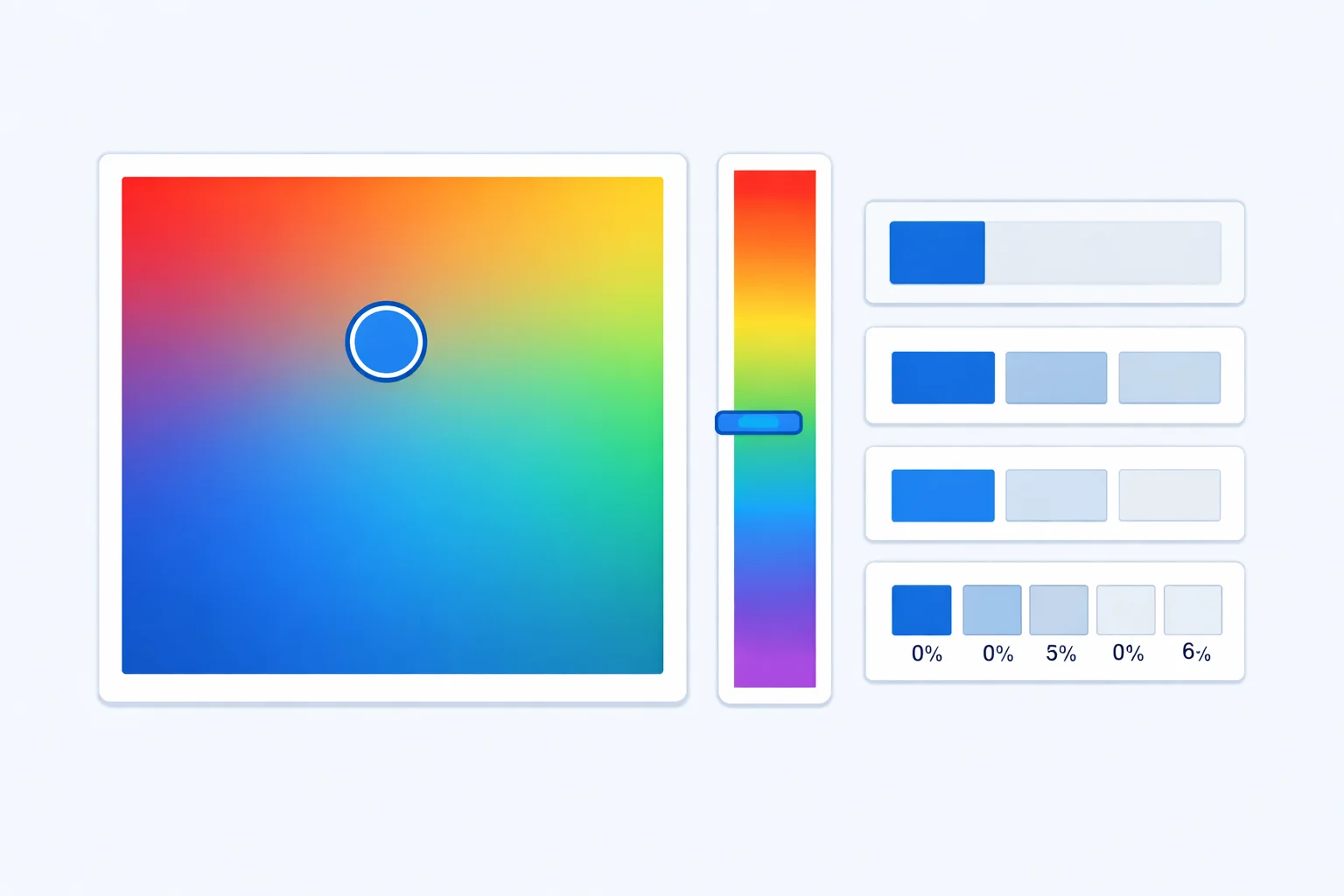
The HSV Model Behind Every Color Picker
The gradient canvas you just dragged across doesn't use RGB internally. It uses HSV— Hue, Saturation, Value (also called HSB for Hue, Saturation, Brightness). Here's why: in HSV, the three dimensions map perfectly to a 2D canvas plus a strip.
- Hue (0-360°) — the color itself. Red at 0°, yellow at 60°, green at 120°, cyan at 180°, blue at 240°, magenta at 300°. This is the rainbow strip.
- Saturation (0-100%) — how vivid the color is. 0% is gray, 100% is full intensity. This maps to the horizontal axis of the canvas.
- Value / Brightness (0-100%) — how bright the color is. 0% is always black, 100% is full brightness. This maps to the vertical axis.
So when you pick a point at the top-right corner, you're choosing maximum saturation and maximum brightness for whatever hue is active. Bottom-left? That's 0% saturation, 0% brightness — pure black regardless of hue. The conversion from HSV to RGB is a sector-based formula that splits the 360° hue circle into six 60° segments and interpolates between primary colors.
Four Color Formats, One Color
One color, four representations. Each exists because different tools and workflows have different needs.
| Format | Example | Where It's Used |
|---|---|---|
| Hex | #2563EB | CSS, HTML, design tools (Figma, Sketch), brand guidelines |
| RGB | rgb(37, 99, 235) | JavaScript canvas, image processing, animation libraries |
| HSL | hsl(217, 83%, 53%) | CSS theming, creating lighter/darker variants, design systems |
| CMYK | cmyk(84%, 58%, 0%, 8%) | Print design, packaging, commercial printers (InDesign, Illustrator) |
Hex and RGB are mathematically identical — hex is just the base-16 encoding of the same three 0-255 values. Converting between them is pure number-base arithmetic. HSL takes those same numbers and remaps them into a more human-friendly form: "what color is it, how vivid, how bright." CMYK is the odd one out — it models ink on paper (subtractive color mixing), not light on a screen (additive), so the conversion from RGB is lossy. Some vivid screen colors simply can't be reproduced in CMYK. Our RGB to CMYK converter shows you exactly how much color shift to expect.
Picking Colors for Web Design
Choosing a color isn't just about what looks good on your screen. Three practical constraints matter more than aesthetics for production work:
Contrast ratios. The WCAG 2.1 guidelines require a minimum 4.5:1 contrast ratio between text and its background for AA compliance, or 7:1 for AAA. That gorgeous light blue (#87CEEB) fails as body text on white — its contrast ratio against #FFFFFF is only 2.8:1. Before committing to a color, run it through a contrast check.
Color blindness.Around 8% of men and 0.5% of women have some form of color vision deficiency. The most common type, deuteranopia (red-green blindness), means users can't distinguish your red error state from your green success state. Never rely on color alone to convey meaning — always pair it with text labels, icons, or patterns.
Gamut limits. sRGB is the standard color space for the web. If you pick a color in Adobe RGB or Display P3 in your design tool, it might look different (often duller) when the browser clamps it to sRGB. The CSS color(display-p3 ...) function exists for wider gamut, but only works on supporting devices. For safe cross-device consistency, stick to sRGB.
From Picker to Production Code
You've picked a color. Now what? The copy-paste workflow matters more than most people think. Here's a worked example from picker to deployed CSS.
Say you've selected a saturated blue: #2563EB. That's rgb(37, 99, 235) or hsl(217, 83%, 53%). For a design system, you don't hardcode it — you store it in a CSS custom property:
:root { --color-primary: #2563EB; }
Need a hover state 10% darker? HSL makes this easy. Drop the lightness from 53% to 43%: hsl(217, 83%, 43%) gives you #1B4DBF. That's why HSL is the go-to format for building theme variants. Try doing "10% darker" in hex by staring at #2563EB — it's not intuitive. Our hex to RGB converter can break down the channel values if you want to verify the shift manually.
For Tailwind CSS users, #2563EB happens to be exactly blue-600. But most picked colors won't match a Tailwind preset. In that case, extend the Tailwind config with your custom value or use arbitrary color syntax: bg-[#2563EB].
Mistakes That Ship the Wrong Color
Pasting a hex code without the hash. CSS requires the # prefix. Writing color: 2563EB; is silently ignored by browsers — your text inherits whatever color the parent had, which might look fine in dev but breaks on production backgrounds.
Confusing HSL lightness with HSV brightness.HSL's 50% lightness is the "purest" version of a color. HSV's 100% brightness is. A value of 50% in HSV is much darker than 50% in HSL. Swapping the two is a common mistake when porting colors between Figma (HSB/HSV) and CSS (HSL).
Rounding errors across conversions. Convert #2563EB to HSL, round to integers, convert back to hex, and you might get #2564EB instead of the original. One digit off. For brand colors, always store the original hex as the source of truth and derive other formats from it.
Assuming CMYK conversion is reversible. RGB to CMYK is a lossy mapping. If you convert #2563EBto CMYK and then back to RGB, you'll likely get a slightly different value because the CMYK gamut is smaller than sRGB. Always keep the original hex.
Eyedropper Tools vs. Manual Input
An eyedropper grabs the exact pixel color under your cursor. It's fast — but it captures what's rendered, not what's specified. If a monitor is miscalibrated, or the element has transparency blended against a background, the eyedropper reports the composite result, not the pure CSS value. Windows PowerToys includes a free system-wide eyedropper (Win+Shift+C). macOS has the Digital Color Meter in Utilities. Chrome DevTools lets you inspect computed colors on any element.
Manual input — typing hex, RGB, or HSL values directly — gives you precision and repeatability. You know exactly what you're getting because you specified it. The color picker above supports both: drag to explore visually, then fine-tune by typing exact numbers.
Color Accessibility: Beyond Aesthetics
Good color choices aren't just design decisions — they're accessibility requirements. The Web Content Accessibility Guidelines (WCAG) 2.1 define specific contrast thresholds that affect millions of users with low vision, color blindness, or screen glare from sunlight.
A quick reference: white text (#FFFFFF) on a background of #2563EB (the blue in our picker default) gives a contrast ratio of about 4.6:1 — just barely passing AA for normal-sized text. Bump that background to #1D4FBF and you're at 6.2:1, safely AA-compliant. For large text (18px+ bold or 24px+ regular), the threshold drops to 3:1, giving you more color freedom for headings.
When building a palette from your picked color, always test text-on-background combinations. A color that works beautifully as a decorative accent might fail as a button label color. Our WCAG contrast checker lets you test any two colors instantly.
Brand Color Workflows for Teams
A single hex code becomes a problem when five team members copy it slightly differently. Here's how professional teams handle it:
- Single source of truth. Define brand colors in one place — a CSS custom properties file, a Figma library, or a design tokens JSON. Every developer and designer references this file, never a hardcoded hex scattered across components.
- Document all four formats. Your brand guide should list hex, RGB, HSL, and CMYK for each color. Print materials need CMYK; CSS needs hex/HSL; JavaScript animations need RGB. Letting each developer convert independently guarantees rounding inconsistencies.
- Generate shade scales from the base color. Don't pick 10 shades manually. Take your primary hex, convert to HSL, and programmatically adjust lightness in even steps (95%, 85%, 75%... down to 15%). This produces a mathematically consistent scale like Tailwind's 50-950 palette.
- Version your color tokens. When marketing decides "our blue is slightly more saturated now," change the token, not 47 component files. If you're using CSS custom properties, one edit to
--color-primarypropagates everywhere.